Choose a solid-state drive (SSD) for the drive that runs your operating system and apps, because it is much faster and has no moving parts. Choose a hard disk drive (HDD) when you need a lot of capacity for the lowest cost per gigabyte, such as backups, media libraries and archives. Many people get the best of both by pairing a smaller SSD with a larger HDD.
This guide explains how each drive works and how to compare them on speed, durability, cost and capacity. For more plain-English technology guides, visit redandwhitemagz .com.
Key Takeaways
- SSDs boot, load apps and open files far faster than HDDs, and they handle bumps better.
- HDDs still win on cost per gigabyte, which makes them practical for bulk storage and backups.
- Compare drives by dividing the price by the capacity in gigabytes, not by the sticker price alone.
- Wiping an SSD properly requires different methods than wiping an HDD.
Storage choices affect everything from a family laptop to a small office file server. Browse our Technology & Innovation hub for related explainers, and see the Business & Strategy section if you are buying equipment for a company.
How Each Drive Works
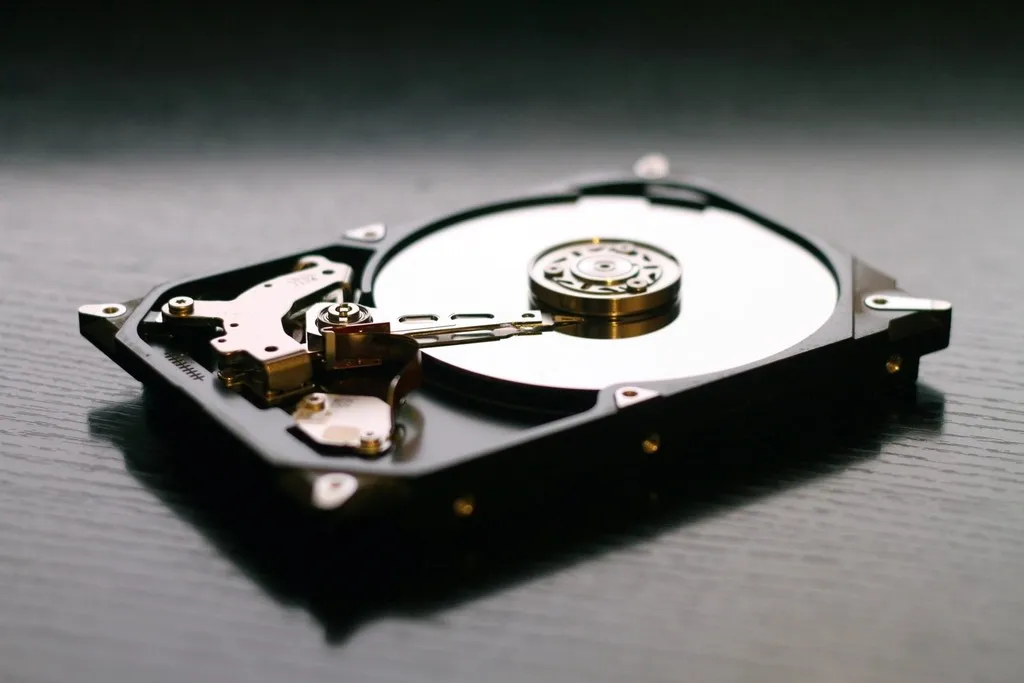
An HDD stores data magnetically on spinning platters. A read/write head on a moving arm floats just above the surface, so the drive has to physically move to the right spot before it can read a file. Common consumer drives spin at 5,400 or 7,200 revolutions per minute.
An SSD stores data in NAND flash memory chips managed by a controller. There is nothing to spin or move, so the drive can reach any piece of data almost instantly. That single design difference explains most of the gaps in speed, noise and durability between the two.
SATA and NVMe SSDs
Not all SSDs are equally fast. SATA SSDs use the same connection as most HDDs and are capped by the SATA interface, which tops out at 6 gigabits per second. NVMe SSDs connect over PCI Express and are several times faster. Most modern laptops use the small M.2 format, which can carry either type, so check which one your computer supports.
SSD vs HDD Side by Side
| Factor | SSD | HDD |
|---|---|---|
| Technology | Flash memory chips, no moving parts | Spinning magnetic platters and a moving head |
| Speed | Fast boot, app launches and file transfers | Slower, especially with many small files |
| Durability | Resists drops and vibration | Vulnerable to shocks while running |
| Wear pattern | Flash cells wear with writes, rated by the maker in terabytes written | Mechanical parts wear over time |
| Noise and heat | Silent, generally cooler | Audible spinning and clicking |
| Cost per gigabyte | Higher | Lower, especially at large capacities |
| Best use | Operating system, apps, active projects | Backups, archives, large media libraries |
Speed and Everyday Performance
Speed is where an SSD changes how a computer feels. Startup takes seconds instead of minutes, programs open almost immediately and searching through folders no longer stalls. The improvement is most obvious with tasks that read many small files, which is exactly what operating systems do all day.
For large, continuous files, such as a single long video, the gap narrows but remains noticeable. If you edit photos or video, keep active projects on the SSD and move finished work to cheaper storage.
Durability and Lifespan
Because SSDs have no moving parts, a dropped laptop is far less likely to damage the drive. HDDs are most vulnerable while the platters are spinning, so jolts during use are riskier than bumps while the computer is off.
Both types wear out eventually. SSD makers publish an endurance rating, often expressed as total terabytes written, which far exceeds what typical home use produces. HDDs tend to fail mechanically, sometimes with warning signs such as unusual clicking. Neither drive replaces a backup, so keep important files in at least two places.
Cost per GB and Capacity
Comparing drives by sticker price is misleading. Divide the price by the capacity in gigabytes to get the cost per gigabyte, then compare like with like.
- Write down the price and capacity of each drive you are considering.
- Convert terabytes to gigabytes (1 TB equals 1,000 GB as drive makers measure it).
- Divide the price by the gigabytes to find the cost per gigabyte.
- Weigh that figure against the speed and durability you need.
On that measure, HDDs generally remain the cheaper option for very large capacities, while SSDs cost more per gigabyte but deliver far better performance. A common setup is an SSD for the system and an HDD for bulk files, a balance that also suits small offices on a budget. More practical buying advice for teams appears across RedAndWhiteMagz.com.
Wiping a Drive Securely
Deleting files or emptying the trash does not remove data. The Cybersecurity and Infrastructure Security Agency notes that data remains on the media even after a delete or format command, and that sanitization methods vary by device.
The difference matters when you sell, donate or recycle a computer. On an HDD, overwriting the whole drive with new data is a well-established approach. SSDs spread writes across their cells and keep spare capacity the computer cannot see, so a simple overwrite may not reach every copy of your data. For SSDs, use the drive’s built-in sanitize or secure erase command, or a cryptographic erase on an encrypted drive. The current federal guidance on these methods is NIST Special Publication 800-88 Revision 2, published in September 2025, which covers cryptographic erase and secure erase techniques.
Upgrading a Slow Laptop
If an older laptop still uses an HDD, replacing it with an SSD is often the most noticeable upgrade you can make for the money. Before you buy, confirm three things.
- The drive format your laptop accepts, such as a 2.5-inch bay or an M.2 slot.
- Whether an M.2 slot supports SATA, NVMe or both.
- How you will move your data: clone the old drive or reinstall the operating system after a full backup.
Some thin laptops have storage soldered to the board, which rules out a swap. If that is the case, an external SSD can still speed up large file transfers.
The Bottom Line
Pick an SSD for speed and resilience, and pick an HDD for affordable bulk capacity. For most people, the system drive should be an SSD, with an HDD or cloud service handling backups. If you are also choosing a new computer, compare platforms in our Windows vs macOS vs ChromeOS guide, see where hardware is heading in our look at tech innovations shaping business, and find more explainers on RedAndWhiteMagz.com.
Frequently Asked Questions
Can I Use an SSD and an HDD in the Same Computer?
Yes. Many desktops have room for both, and the common setup is to install the operating system and apps on the SSD while storing photos, videos and backups on the HDD. Some laptops have only one drive bay, in which case an external HDD or cloud storage can handle bulk files.
Is an External SSD Worth It for Backups?
An external SSD is faster and more resistant to drops, which helps if you carry backups between locations. An external HDD stores more for the money, which suits large, infrequent backups kept at home. Whichever you choose, keep at least one additional copy of important files in a separate place or online.
How Do I Know If My Computer Has an SSD or an HDD?
On Windows, open the Defragment and Optimize Drives tool, which lists each drive’s media type. On a Mac, open System Information and look under Storage. Many manufacturers also list the drive type in the product specifications. A clicking or spinning sound during use usually points to an HDD.
Should I Defragment an SSD?
No. Defragmenting helps HDDs by placing file pieces close together on the platters, but SSDs can read any location equally fast. Modern versions of Windows detect SSDs and run a different optimization command instead. Leave the built-in maintenance settings on and avoid third-party defragmenting tools on solid-state drives.
Sources
This article is general information, not personal financial, legal or tax advice. Spotted an error? Read our editorial policy and tell us.