


Home security camera buying guide: local vs cloud storage and privacy
Home security camera buying guide: resolution, night vision and field of view explained, plus local vs cloud storage, encryption and privacy tips before you buy.
Smart Home · Comparison
Mesh Wi-Fi vs extenders explained: how each fixes dead zones, why wired backhaul works best, and which to choose for your home's size, walls and floors.
Key takeaways
If one or two rooms have weak Wi-Fi in a smaller home, a modern range extender is the cheapest fix. If dead zones are spread across several floors or behind thick walls, a mesh system does a better job, because it creates one network that covers the whole home. And if you can run Ethernet cable between units, a wired mesh setup beats both.
Wi-Fi weakens with distance, and every wall, floor and cabinet between you and the router takes a bite out of it. TP-Link’s placement advice notes that mirrors and large metal surfaces reflect Wi-Fi signals, while walls, cabinets and masonry absorb them. Microwaves, cordless phones, refrigerators and baby monitors can add interference too.
The band matters as well. As our Wi-Fi 7 vs Wi-Fi 6E guide explains, 2.4 GHz travels farthest, 5 GHz covers less, and 6 GHz has the shortest range of all.
Before you buy anything, try the free fixes:
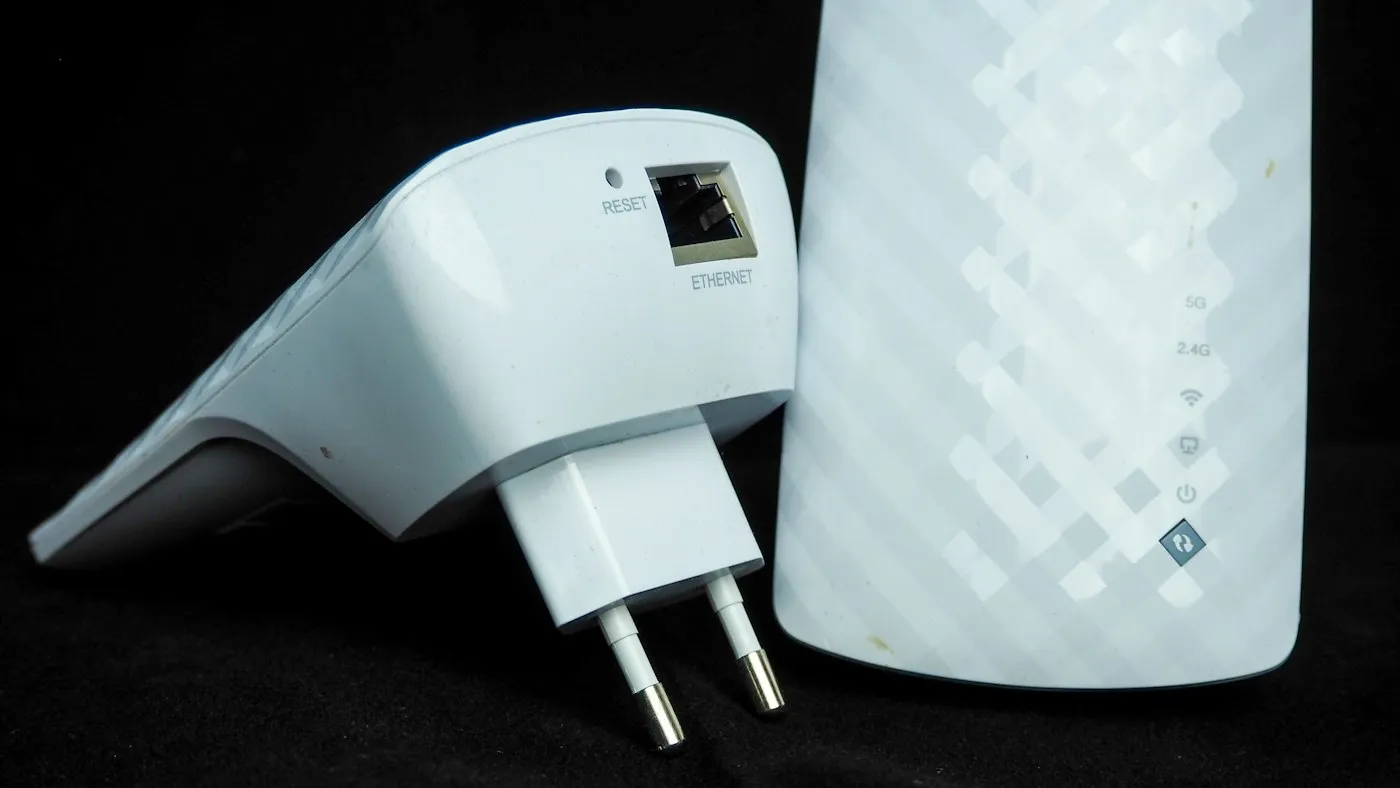
An extender is a single box, often one that plugs straight into a wall outlet. It picks up your router’s signal and rebroadcasts it farther into your home. That simplicity comes with trade-offs.
Speed loss. NETGEAR’s comparison says traditional dual-band extenders can cut the available bandwidth in half, because they use a single channel to receive your data and then rebroadcast it. TP-Link says newer Wi-Fi 6 and Wi-Fi 7 extenders narrow that gap, but an extender still spends part of its capacity talking to the router.
A second network name. Many extenders broadcast a separate network, such as “Home_EXT.” Your phone may cling to the weaker network as you walk around, so you end up switching by hand.
Placement is everything. An extender can only repeat the signal it receives. TP-Link recommends placing it roughly halfway between the router and the weak area, about 25 to 40 feet from the router for models with external antennas, or 20 to 35 feet for internal-antenna models, at about the router’s height. Plug it in inside the dead zone and it has too little signal to pass along.
Some extenders now blur the line with mesh. According to TP-Link, EasyMesh extenders paired with a compatible router join one unified network under a single name, which removes most of the manual switching.
A mesh system is a set of two or more units, often called nodes or points, that work as one network. One unit connects to your modem, and the others spread around the house. All of them share a single network name and password, and your devices move to the strongest unit as you walk from room to room. Setup and settings usually live in one phone app.
The units talk to each other over a link called the backhaul. It can be wireless or an Ethernet cable. Better wireless systems keep a separate radio for that job: NETGEAR says tri-band and quad-band mesh designs set aside specific backhaul channels, so the traffic between units doesn’t steal as much speed from your devices.
Placement still matters. Google suggests putting each point about halfway toward the area you want to cover, no more than two rooms from the router or another point, and notes that points perform better when they can see each other.
Mixing brands is usually a no-go. The Wi-Fi Alliance’s EasyMesh standard is designed to let certified access points from different vendors work together, but most mesh kits are built to run with units from the same brand.
| Wi-Fi extender | Mesh, wireless backhaul | Mesh, wired backhaul | |
|---|---|---|---|
| How it works | Repeats the router’s signal | Units link to each other over Wi-Fi | Units link over Ethernet cable |
| Network name | Often a second name, unless mesh-capable | One name everywhere | One name everywhere |
| Speed far from the router | Reduced, especially on basic dual-band models | Good, best with a dedicated backhaul band | Best of the three |
| Roaming between rooms | Often manual | Automatic | Automatic |
| Best for | One or two weak rooms in a smaller home | Larger homes, several floors, thick walls | Any home where you can run cable |
| Cost and effort | Lowest | Higher | Highest, since cables are needed |
When mesh units are linked by cable, they don’t have to share Wi-Fi airtime with your phones and laptops to talk to each other. eero’s support article puts it simply: if your home is already wired with Ethernet, you’ll want to use those connections, because they maximize your internet speeds and reduce wireless interference. eero recommends Cat5e, Cat6 or Cat6a cable.
A few things to check before you count on it:
If you already have Ethernet running to a few rooms, you may not need mesh at all. A second router or dedicated access point set up in access point mode, wired back to your main router, can do the same job.
Skip the habit of adding a second or third extender. Each extra wireless hop adds more slowdown and more networks to juggle, and at that point a mesh system is simpler.
Whichever route you take, the FTC’s home Wi-Fi checklist still applies: change the default admin password, turn off remote management, WPS and UPnP if you don’t need them, and use a guest network for visitors. Smart-home gadgets deserve the same care, as our secure smart home setup guide explains.
Extenders are a quick, inexpensive patch for a single weak room, as long as you place them where the signal is still strong. Mesh is the better fix for bigger homes, multiple floors and thick walls, because it gives you one network that follows you around. If you can run Ethernet between units, do it, since wired backhaul is the most reliable option of all.
For more on connected-home gear, browse our smart-home section or the buying cheat sheet, and find more plain-English guides on RedAndWhiteMagz.com.
It can't make your internet plan faster. What it does is bring a stronger signal to rooms that were weak, so speeds there can get much closer to what you already get next to the router. If speeds are slow even beside the router, the problem is more likely your plan, your modem or the router itself.
It depends on your home's size, layout and building materials, not just square footage. Google's placement advice for its own mesh points is to keep each one no more than two rooms away from the router or another point. Many homes start with a two- or three-unit kit and add another unit if a room is still weak.
Usually, yes. Many mesh systems can run in a bridge or access point mode, so your provider's router keeps handling the internet connection while the mesh handles Wi-Fi. Alternatively, some provider gateways can be set to bridge mode so the mesh does the routing. Check your provider's and your mesh maker's instructions so you don't end up with two routers doing the same job.
Usually not. Most mesh systems are designed to work only with units from the same brand and often the same product line. The Wi-Fi Alliance's EasyMesh standard is meant to let certified units from different makers work together, but support varies, so confirm that every product you plan to combine lists EasyMesh.
First published . Spotted an error? Read our editorial policy and tell us.
Home security camera buying guide: resolution, night vision and field of view explained, plus local vs cloud storage, encryption and privacy tips before you buy.

How to set up a secure smart home: lock down your router, protect your accounts, choose devices that keep getting updates and tune mic and camera privacy.
Matter and Thread explained: how the smart home standards work together, which speakers and hubs are Thread border routers and what Matter still can't do.
Contact RedAndWhiteMagz.com
Spotted a new gadget, a scam making the rounds or a mistake in one of our guides? Tell us. We read every message and reply as quickly as we can.