


How to back up your phone and computer with the 3-2-1 rule
Learn the 3-2-1 backup rule and how to back up your iPhone, Android phone, Windows PC and Mac, so a lost device or dead drive never takes your files.
Topic hub
Practical steps to protect your accounts, devices and personal data, starting with the ones that stop the most common attacks.
About this hub
Staying safe online comes down to a handful of habits and settings, and those are the focus here. This hub covers passkeys and password managers, two-step verification, scams and phishing, privacy settings on phones, computers and apps, backups, and the security features already built into the devices you own. The advice is aimed at personal and family accounts rather than corporate networks.
You do not need an IT background to follow along. These pages are for anyone who has received a suspicious text, reused a password once too often, or set up a parent's new phone and wondered which settings really matter. Many account takeovers start with a stolen password, a convincing fake message or a device that missed an update rather than with sophisticated hacking, so the fixes are often free and take minutes. RedAndWhiteMagz.com explains each step, says what it protects against, and is honest when a popular tip offers less protection than it seems.
If you only have ten minutes, secure your email account first, because it can reset almost every other password you have. Then work through the subtopics below in order, from sign-in security to backups. The FAQs explain what a passkey is, whether text-message codes are safe enough, and what to do right away if you clicked a link you should not have. The FTC and CISA also publish free consumer guidance, and we link to it where it applies. Each step stands on its own, so you can stop at any point and still be safer than when you started.
How passkeys replace passwords with a key pair tied to each site, how to set them up, and how a password manager covers the accounts that still need a password.
The difference between text-message codes, authenticator apps, passkeys and hardware security keys, and how to save backup codes so you never lock yourself out.
Warning signs in fake texts, emails, calls and ads, from delivery, bank and tech-support scams to AI voice cloning, plus where to report them.
Step-by-step checks for app permissions, location history, ad tracking and data sharing on iPhone, Android, Windows, Mac and major social platforms.
Setting up automatic backups for phones and computers, following the 3-2-1 rule, and testing a restore before you actually need one.
Updates, screen locks, encryption and tracking tools such as Apple's Find My and Google's Find Hub, and what to do when a device is lost, stolen or no longer supported.
Cybersecurity guides
Learn the 3-2-1 backup rule and how to back up your iPhone, Android phone, Windows PC and Mac, so a lost device or dead drive never takes your files.

How to spot phishing in emails, texts, calls and QR codes, including AI voice-clone scams, plus a step-by-step plan for what to do if you clicked.

Passkeys explained: how they work, why they're phishing-resistant, where they're stored, and how to set them up on your Apple, Google and Microsoft accounts.
Password managers explained: how they create, encrypt and autofill strong passwords, how built-in and standalone apps compare, and how to choose one.
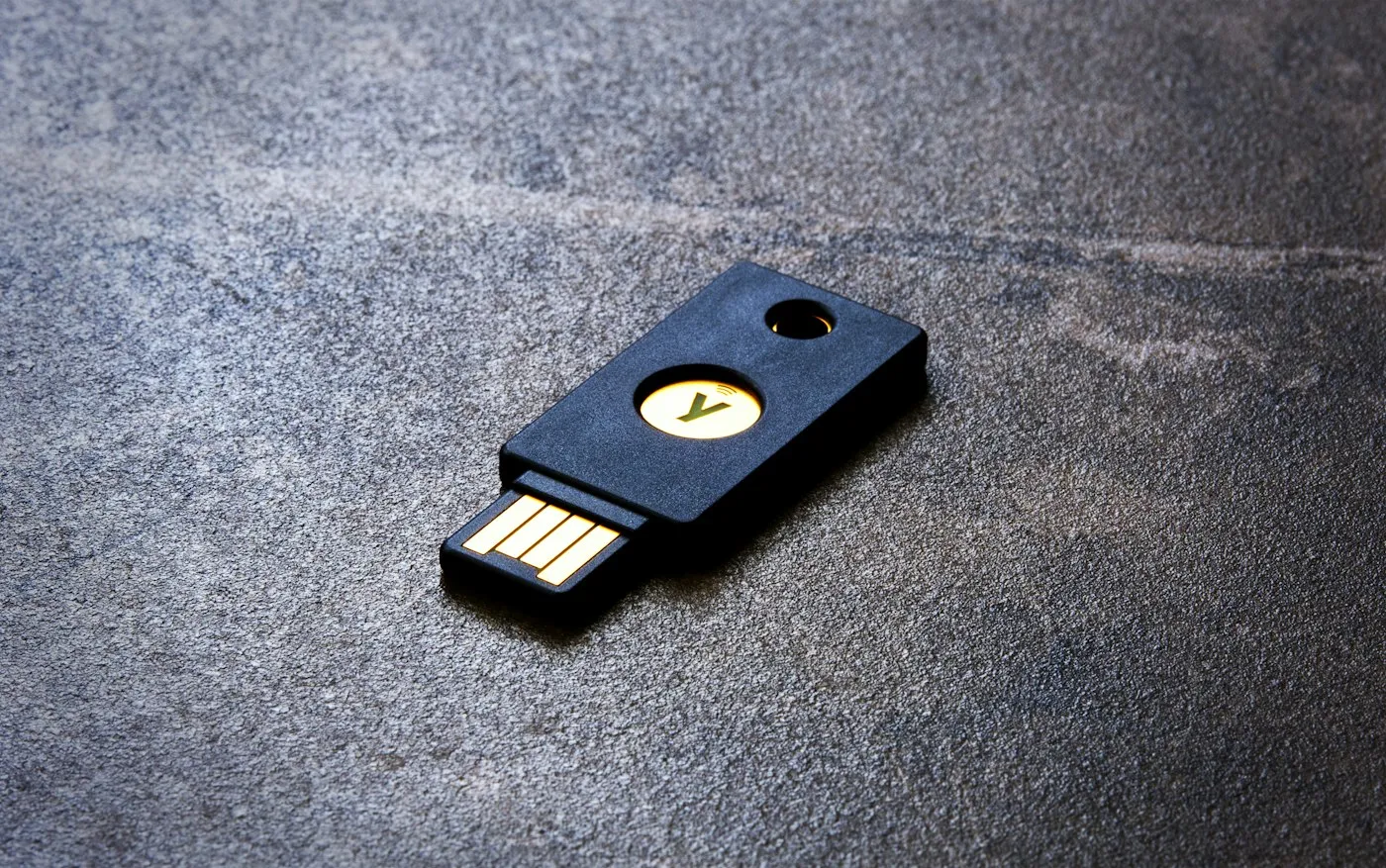
Two-factor authentication methods compared: how SMS codes, authenticator apps, push prompts, passkeys and security keys work, and which to use where.
Quick answers
Short, plain-English answers to the questions readers ask most about cybersecurity.
A passkey is a sign-in credential built on a pair of cryptographic keys: the website stores a public key, while the private key stays on your device or in your password manager and is unlocked with your fingerprint, face or device PIN. A passkey only works on the site it was created for and is never typed or shared, which makes it highly resistant to phishing. If the website suffers a data breach, attackers get only the public key, which is useless on its own.
They are far better than a password alone, but they are the weakest common option. Text messages can be intercepted, and scammers can hijack your number through a SIM swap, so CISA advises using an authenticator app, a passkey or a hardware security key wherever a service offers one. If SMS is the only choice, keep it turned on and add a PIN or number-lock protection with your mobile carrier.
Close the page and do not enter anything else. If you typed a password, change it right away on the real site and anywhere else you used it, turn on two-step verification and check the account for unfamiliar activity; if you shared card or bank details, call your bank using the number on your card. Run a security scan if you downloaded anything, and report the scam to the FTC at ReportFraud.ftc.gov.
Explore more
Contact RedAndWhiteMagz.com
Spotted a new gadget, a scam making the rounds or a mistake in one of our guides? Tell us. We read every message and reply as quickly as we can.