


How to spot a phishing message, and what to do if you clicked
How to spot phishing in emails, texts, calls and QR codes, including AI voice-clone scams, plus a step-by-step plan for what to do if you clicked.
Cybersecurity · How-to
Learn the 3-2-1 backup rule and how to back up your iPhone, Android phone, Windows PC and Mac, so a lost device or dead drive never takes your files.
Key takeaways
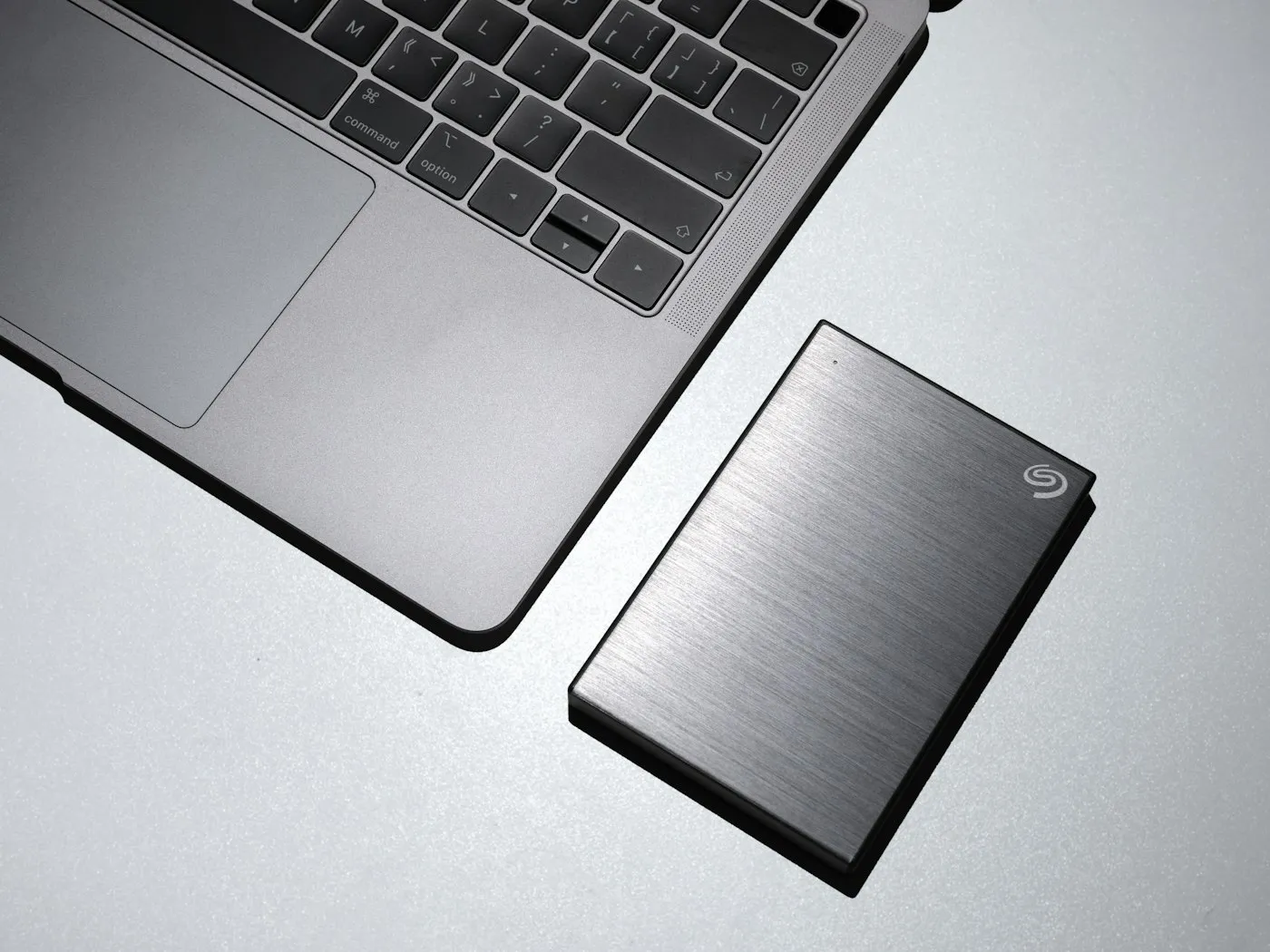
The 3-2-1 backup rule is simple: keep three copies of anything you can’t afford to lose, on two different types of storage, with one copy off-site or in the cloud. For most people, that means letting your phone and computer back up to the cloud automatically, then copying everything to an external drive you keep at home. Here’s how to set that up on an iPhone, an Android phone, a Windows PC and a Mac.
The rule is usually credited to photographer Peter Krogh, who described it in a book on managing digital photos. The U.S. Cybersecurity and Infrastructure Security Agency (CISA) recommends it to everyone from home users to security professionals in its Data Backup Options paper. Here’s what each number means:
Why go to this much trouble? Data loss rarely gives a warning. A phone slips into a lake, a laptop gets stolen from a car, a drive stops working, or ransomware scrambles every file it can reach. CISA’s #StopRansomware Guide warns that many ransomware strains hunt for connected backups and encrypt or delete them too. That’s why it recommends offline backups that you test regularly.
One more thing to know: sync is not the same as backup. iCloud Drive, Google Drive and OneDrive keep your files the same on every device. That’s handy until you delete a folder by mistake and the deletion syncs everywhere. Sync services usually let you recover deleted files for a limited time, but a real backup keeps older copies that stay under your control.
Here’s what a 3-2-1 setup looks like with the tools built into your devices:
| Device | Copy 1 (original) | Copy 2 (second type of storage) | Copy 3 (off-site) |
|---|---|---|---|
| iPhone | The phone | Encrypted backup on your Mac or PC | iCloud Backup |
| Android phone | The phone | Photos and files copied to your computer | Google backup and Google Photos |
| Windows PC | Internal drive | File History on an external drive | OneDrive through Windows Backup |
| Mac | Internal drive | Time Machine on an external drive | iCloud Drive or a cloud backup service |
Start with the things you can’t download again:
Apps and games you’ve bought can usually be downloaded again, so they matter less.
Next, check the storage section in your device’s settings to see how much space you’re using. For an external drive, Apple recommends a Time Machine disk with at least twice your Mac’s storage capacity, which is a sensible rule for any computer. Hard drives give you more space for the money, while portable SSDs are faster and cope better with knocks. Our SSD vs HDD guide walks through the trade-offs.
The free cloud allowances are small. Apple includes 5GB of iCloud storage, Google includes 15GB shared across your Google account, and a free Microsoft account comes with 5GB of OneDrive storage. If you have years of photos, you’ll probably need a paid plan for the cloud copy.
For the cloud copy, turn on iCloud Backup:
After that, your iPhone backs up on its own when it’s connected to power, locked and on Wi-Fi. Apple says it always encrypts iCloud backups.
For the second copy, back up to your computer:
Don’t skip encryption. Apple notes that encrypted backups include saved passwords, Wi-Fi settings, website history, Health data and call history, which unencrypted backups leave out.
Menu names vary by phone maker, but on phones that use Google’s backup:
Google’s backup covers apps and app data, call history, contacts, device settings and text messages. Photos and videos go through Google Photos. Google says a backup can take up to 24 hours to finish, and some data is encrypted with your screen lock, so use a PIN, pattern or password. Samsung and some other phone makers also offer their own backup services.
For the second copy, move your photos and videos to your computer. You can use a USB cable (choose file transfer when the phone asks) or download them from the Google Photos website. Once they’re on your computer, your computer backup protects them too.
For the local copy, use File History with an external drive:
File History saves copies of the files in your libraries, such as Documents, Pictures, Videos and Music, and keeps checking for changes. To get an older version back, right-click a folder in File Explorer and choose Restore previous versions.
For the cloud copy, open the Start menu, type “backup” and open Windows Backup. It syncs your Desktop, Documents, Pictures, Videos and Music folders to OneDrive and saves your settings, app list and Wi-Fi networks. You’ll need a personal Microsoft account, and it isn’t a full image of your PC. Because those folders sync, the File History copy is your safety net against accidental deletions.
For the local copy, use Time Machine:
Your Mac may offer to erase the drive first, so use an empty one. Time Machine keeps hourly backups for the past 24 hours, daily backups for the past month and weekly backups for older months. When the drive fills up, it deletes the oldest ones.
For the off-site copy, turn on the Desktop & Documents Folders option in your iCloud Drive settings, or use a cloud backup service that keeps older versions of your files. Like OneDrive, iCloud Drive syncs deletions too, so Time Machine is your safety net.
A cloud backup already counts as your off-site copy. If you’d rather not pay for more cloud storage, or you have more files than fit, try these instead:
A backup only counts if you can restore from it. Every few months:
Also watch out for fake “your cloud storage is full” emails and texts. Check your storage in your device settings instead of clicking a link, and see our guide to spotting phishing for other warning signs.
You don’t need expensive gear to follow the 3-2-1 rule. Turn on the cloud backup built into your phone and computer, add an external drive with File History or Time Machine, and keep that drive unplugged when it’s not in use. Spend an hour setting it up, test it now and then, and a broken phone or dead laptop becomes a nuisance, not a disaster. For more ways to protect your devices and accounts, browse our cybersecurity coverage and the rest of the plain-English guides on RedAndWhiteMagz.com.
Turn on automatic backups so you don't have to remember. iCloud Backup runs when your iPhone is charging, locked and on Wi-Fi, and Time Machine backs up a Mac every hour while the drive is connected. For any copy you make by hand, aim for at least once a week, plus before updates, repairs or a phone upgrade.
It's a good start, but it is only one backup. If you lose access to that account, or a problem affects the cloud copy, you have nothing else to fall back on. Add a second copy on your computer or an external drive to meet the 3-2-1 rule.
Either works. Hard drives give you more space for the money, which suits large photo and video libraries, while portable SSDs are faster, lighter and cope better with knocks. Whichever you pick, choose one with at least twice your computer's storage capacity.
It's a good idea, especially for drives that leave your house. Apple says iCloud backups are always encrypted, and both iPhone computer backups and Time Machine let you turn on encryption with a password. Store that password somewhere safe, because you can't restore an encrypted backup without it.
First published . Spotted an error? Read our editorial policy and tell us.
How to spot phishing in emails, texts, calls and QR codes, including AI voice-clone scams, plus a step-by-step plan for what to do if you clicked.
Passkeys explained: how they work, why they're phishing-resistant, where they're stored, and how to set them up on your Apple, Google and Microsoft accounts.
Password managers explained: how they create, encrypt and autofill strong passwords, how built-in and standalone apps compare, and how to choose one.
Contact RedAndWhiteMagz.com
Spotted a new gadget, a scam making the rounds or a mistake in one of our guides? Tell us. We read every message and reply as quickly as we can.