
Game controllers explained: Hall effect sticks, polling rate and compatibility
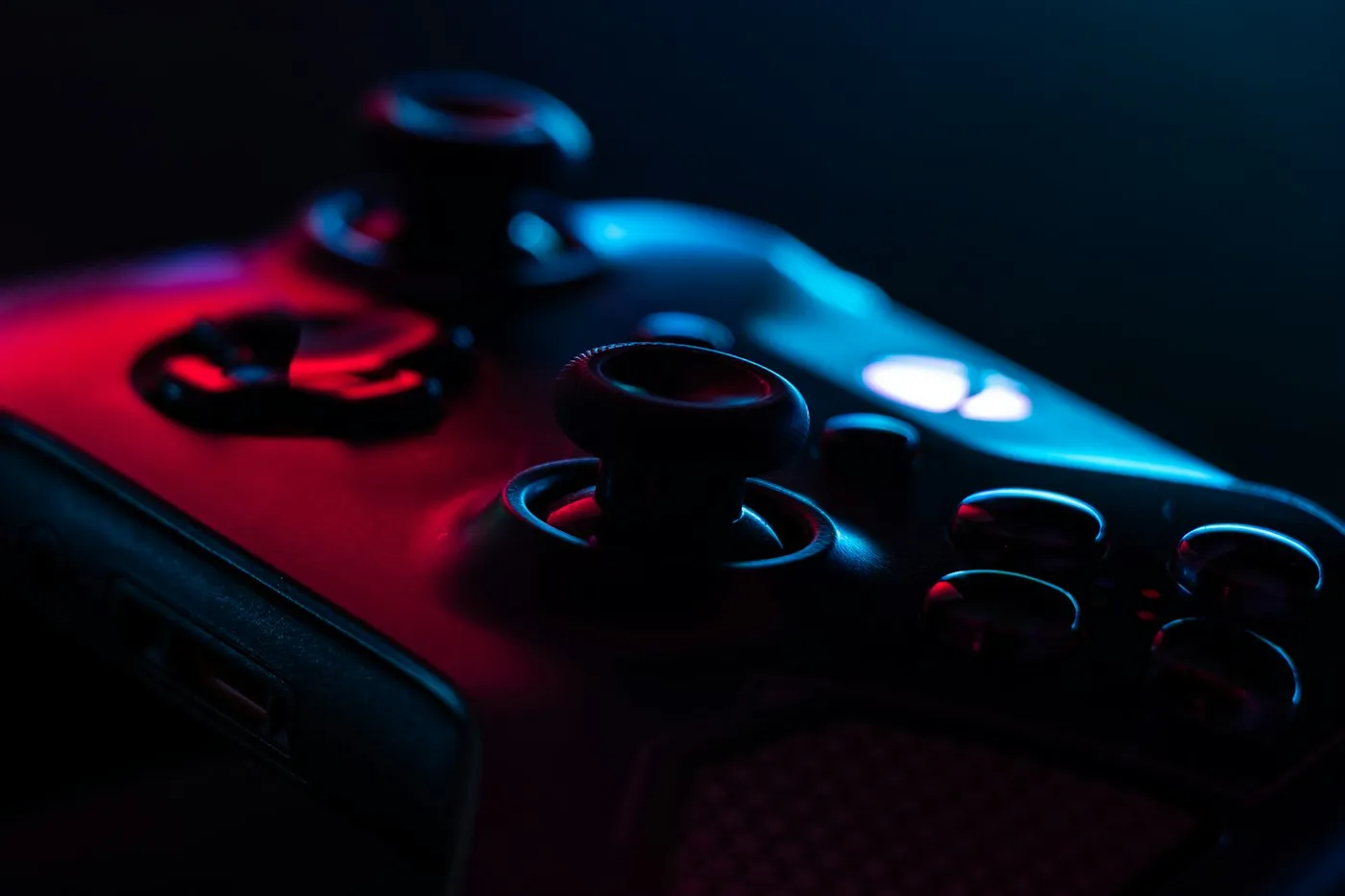
Game controllers explained: how Hall effect and TMR sticks resist drift, what polling rate means, and which pads work with PC, PS5, Xbox and Switch 2.
Topic hub
Help choosing a console, gaming PC or monitor, plus the settings that make the games you already own run and look better.
About this hub
Our Gaming hub is about the hardware and settings behind your games. We cover PlayStation, Xbox and Nintendo consoles, gaming desktops, laptops and handhelds, gaming monitors and TVs, controllers, headsets and other accessories, and the graphics and display settings that decide how smooth a game feels, along with the practical question of which upgrade is worth making first.
Players at every level will find something useful here: a parent choosing a first console, a PC gamer planning a graphics card upgrade, or someone who just bought a 144Hz monitor and is not sure it is really running at 144Hz. Gaming hardware is full of terms such as VRR, DLSS, TGP and HDMI 2.1 that shape what you actually see on screen, so we explain each one and show where it applies. We also flag when a feature only works in games that support it, as upscaling and frame generation often do. At RedAndWhiteMagz.com, the focus is the equipment and getting the best performance from it.
Before you buy anything, check what your current setup can already do. Many TVs only accept a 4K 120Hz signal after you switch on a game mode or enhanced HDMI setting, and a PC may run a new monitor at 60Hz until you change the refresh rate in display settings. Then use the subtopics below to compare platforms and gear, and read the FAQs on HDMI 2.1, refresh rate versus frame rate, and gaming laptops versus desktops. When performance depends on the game, resolution or settings, we say so instead of quoting a single number.
The current PlayStation, Xbox and Nintendo consoles compared on games, online subscriptions, storage and what each one needs from your TV.
Matching a graphics card and processor to the resolution you play at, building versus buying, and why laptop GPUs with the same name can perform very differently.
Portable PCs such as the Steam Deck and Windows handhelds, and how their battery life, screens and game compatibility compare with a console.
Refresh rate, response time, resolution, HDR and panel types, plus variable refresh rate support such as G-SYNC, FreeSync and HDMI 2.1 VRR.
Controllers, headsets, keyboards, mice and storage expansion, and which upgrades make a real difference to comfort or performance.
Upscaling such as DLSS, FSR and XeSS, frame generation, graphics presets and console performance modes, explained so you can trade detail for smoothness with confidence.
Gaming guides
Game controllers explained: how Hall effect and TMR sticks resist drift, what polling rate means, and which pads work with PC, PS5, Xbox and Switch 2.
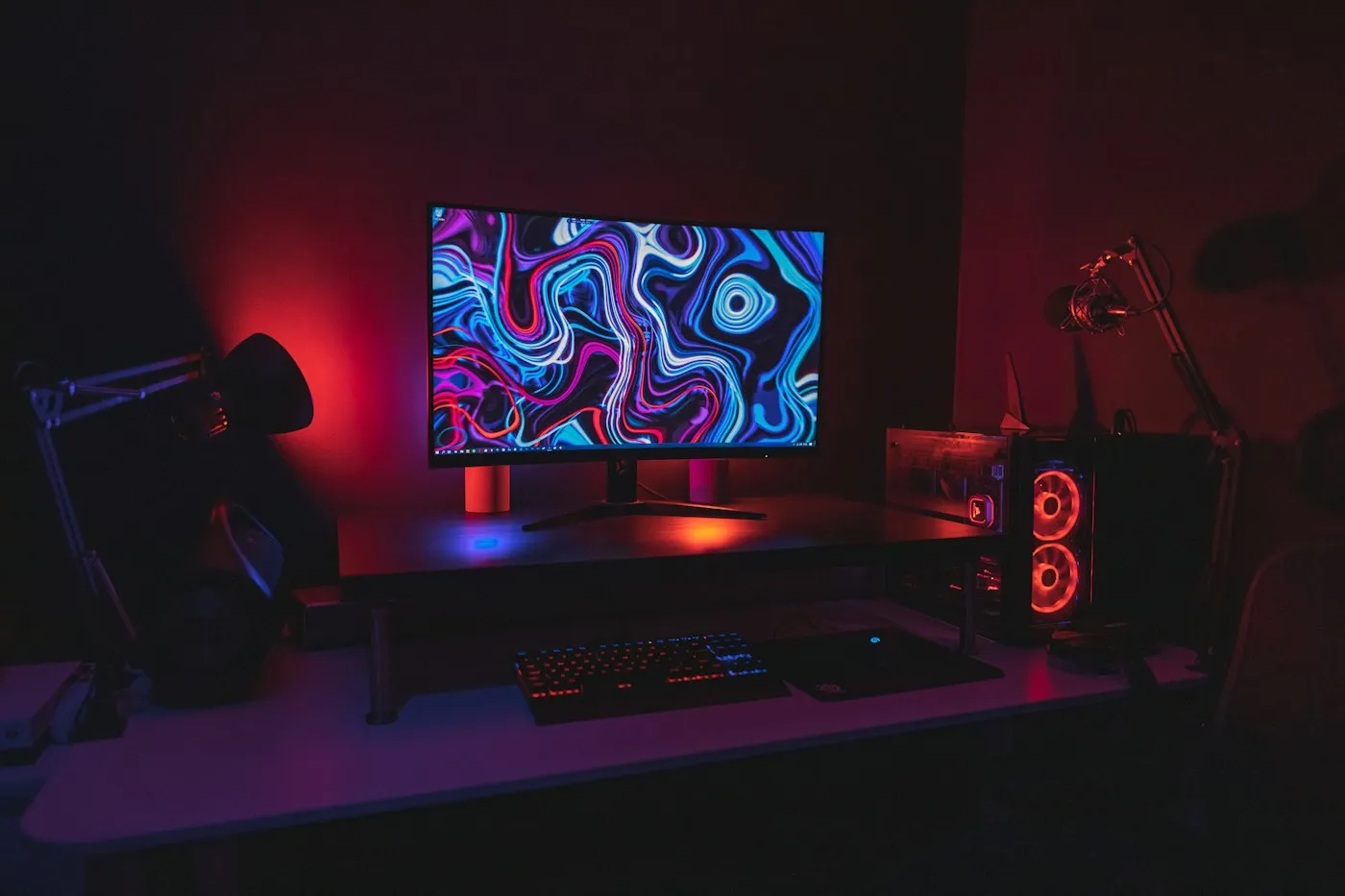
Our gaming monitor buying guide explains resolution, refresh rate, response time, panel types, HDR and ports so you can match a screen to your PC or console.
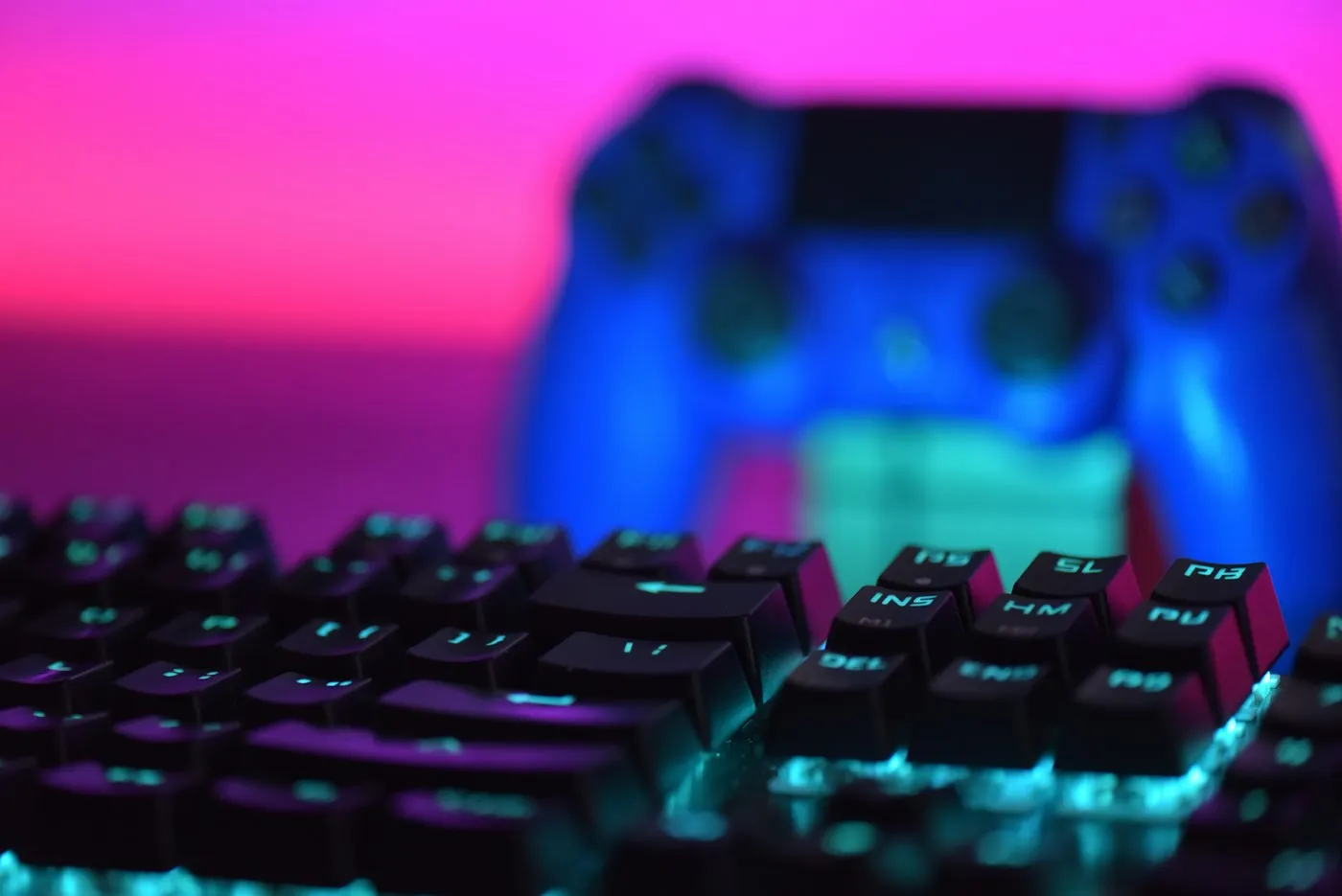
Gaming PC vs console in 2026: how PS5, PS5 Pro, Xbox Series X|S, Switch 2 and a gaming PC compare on cost, games, graphics, subscriptions and upgrades.
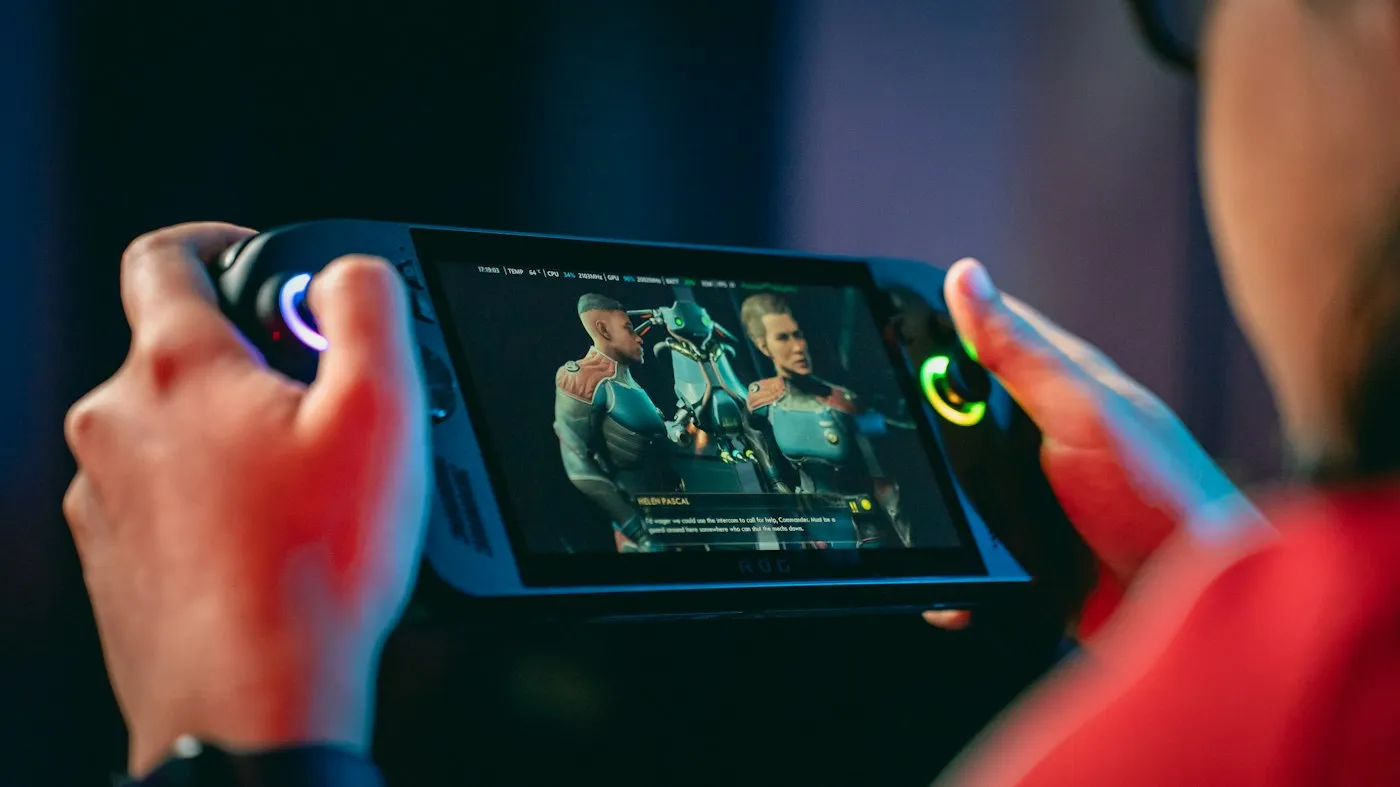
Our handheld gaming PC buying guide explains SteamOS vs Windows, chips, OLED screens, battery life, storage, docking and game compatibility before you buy.
Learn how to reduce input lag on PC and console with TV game mode, ALLM, 120Hz, VRR, smarter V-Sync, NVIDIA Reflex, AMD Anti-Lag and a wired controller.
Quick answers
Short, plain-English answers to the questions readers ask most about gaming.
Mainly for 4K at 120Hz, and for VRR on PS5. To run supported games at 4K and up to 120 frames per second, both consoles need a TV or monitor with an HDMI 2.1 input, ideally one that also supports variable refresh rate (VRR), plus an Ultra High Speed HDMI cable. The PS5 also needs an HDMI 2.1 VRR-compatible display for VRR at any resolution. For 4K at 60Hz without VRR, an HDMI 2.0 display works fine.
Frame rate, measured in frames per second (fps), is how many images your console or graphics card produces each second. Refresh rate, measured in hertz (Hz), is how many times per second your screen redraws the picture. When the two do not line up you can see tearing or stutter, which variable refresh rate technologies such as NVIDIA G-SYNC, AMD FreeSync and HDMI VRR fix by letting the screen follow the game's frame rate.
Usually not at the same price. Laptop graphics chips work within much tighter power and cooling limits, so a laptop GPU is typically slower than the desktop card with a similar name, and its speed also depends on the power limit the laptop maker sets. A desktop is easier to upgrade and keep cool, while a laptop wins if you need to play in more than one place.
Explore more
Contact RedAndWhiteMagz.com
Spotted a new gadget, a scam making the rounds or a mistake in one of our guides? Tell us. We read every message and reply as quickly as we can.