
Game controllers explained: Hall effect sticks, polling rate and compatibility
Game controllers explained: how Hall effect and TMR sticks resist drift, what polling rate means, and which pads work with PC, PS5, Xbox and Switch 2.
Gaming · Buying guide
Our gaming monitor buying guide explains resolution, refresh rate, response time, panel types, HDR and ports so you can match a screen to your PC or console.
Key takeaways
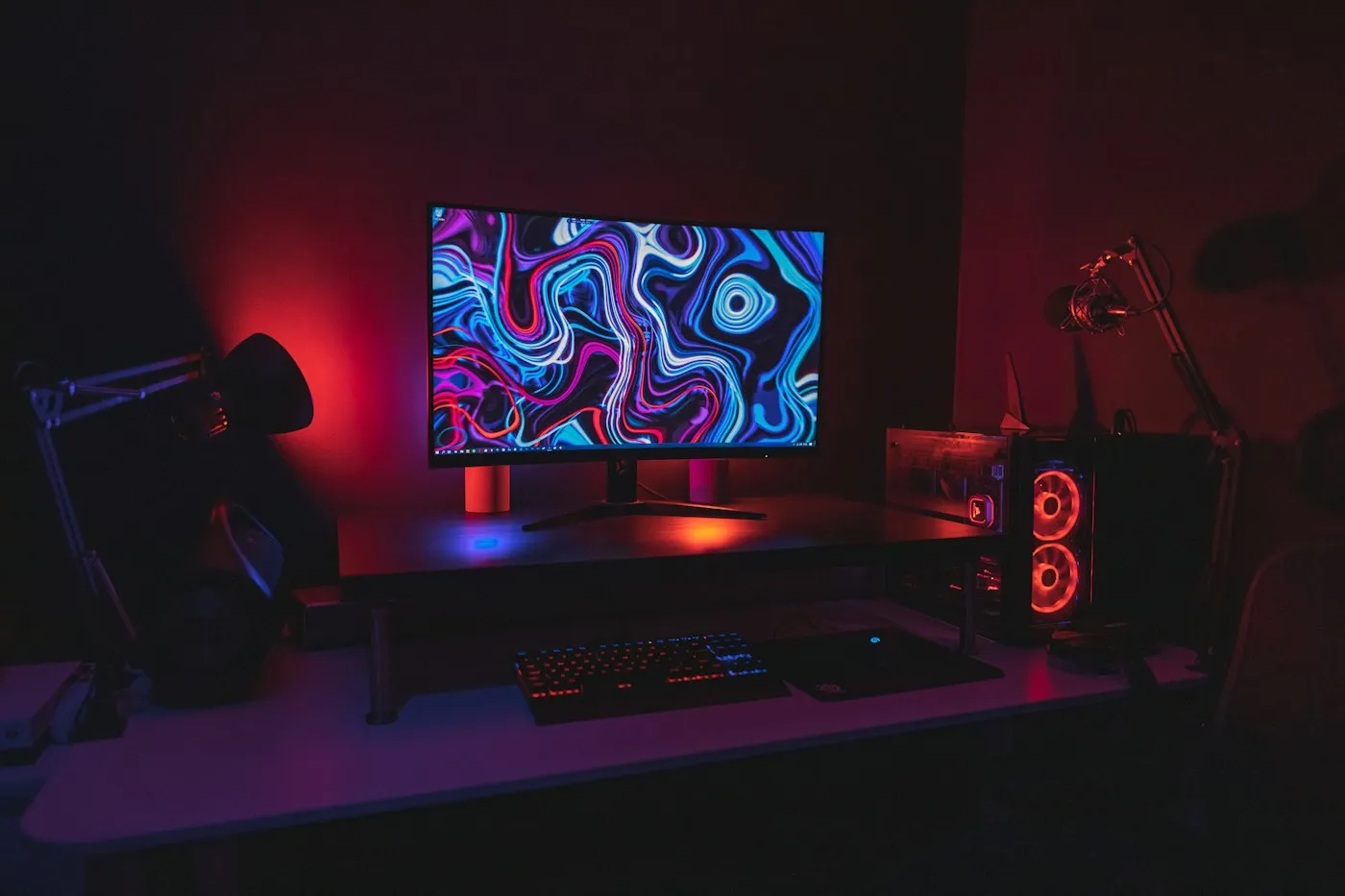
The right gaming monitor is the one that fits your hardware: a resolution your PC or console can drive at your screen size, a refresh rate it can actually reach, and adaptive sync to keep the two in step. For most people in 2026, that means a 27-inch 1440p screen at 144Hz or faster, while PS5 and Xbox Series X owners who want 4K at 120Hz need HDMI 2.1. Here is how to read every spec on the box.
Your graphics card or console sets the ceiling: most of a 4K 240Hz monitor’s speed is wasted on a PC that averages 70 frames per second (fps). This is what each console can output as of September 2026, according to Sony’s PS5 video output guide, Microsoft’s Xbox Series X and Xbox Series S spec pages, and Nintendo’s Switch 2 tech specs and features page.
| Platform | Highest game output | Look for |
|---|---|---|
| PS5 | 4K at 120Hz; 1440p at 60Hz or 120Hz | 1440p or 4K, 120Hz, HDMI 2.1 with VRR |
| PS5 Pro | Same, plus 8K at 60Hz (VRR turns off in 8K) | 4K, 120Hz, HDMI 2.1 with VRR |
| Xbox Series X | 4K at up to 120 fps (up to 8K HDR listed) | 4K, 120Hz, HDMI 2.1, VRR or FreeSync |
| Xbox Series S | 1440p at up to 120 fps, upscales to 4K | 1440p, 120Hz, VRR or FreeSync |
| Nintendo Switch 2 | 4K at up to 60 fps; 120 fps at 1080p or 1440p | 1080p or 1440p, 120Hz, HDR10 |
Nintendo says VRR in TV mode arrived with a system update on September 10, 2026, and works in supported games on a compatible display.
For PC, use these as starting points rather than rules:
| PC graphics tier | Resolution | Refresh rate | Typical size |
|---|---|---|---|
| Entry-level or older GPU | 1080p | 144Hz to 180Hz | 24 to 25 in |
| Midrange GPU | 1440p | 165Hz to 240Hz | 27 in |
| High-end GPU | 4K, or 1440p for esports | 144Hz to 240Hz at 4K; 360Hz or more at 1440p | 27 to 32 in |
Gaming on a laptop too? Our laptop buying guide covers the video ports worth having.
Resolution alone does not tell you how sharp a monitor looks. Pixel density, measured in pixels per inch (PPI), matters more:
Sharpness has a cost: a 4K screen has 2.25 times as many pixels as 1440p, so your graphics card works much harder. Ultrawide game support varies, and consoles output a standard 16:9 picture, so expect black bars on the sides.
Refresh rate, measured in hertz (Hz), is how many times per second the monitor draws a new image. Higher rates make motion smoother and shorten the wait between frames:
Going from 60Hz to 144Hz saves almost 10 ms per frame; going from 240Hz to 360Hz saves about 1.4 ms, so gains shrink as numbers climb. A fast monitor only helps if your system keeps up: a game running at 90 fps will not look like 240 fps on a 240Hz screen. Most console games run at 30 or 60 fps, with some 120 fps modes, so 120Hz or 144Hz covers consoles fully.
Nearly every gaming monitor claims a 1ms response time, but that number can mean different things.
Monitors usually reach 1ms MPRT with backlight strobing, which dims the picture and often cannot run alongside adaptive sync. NVIDIA’s G-SYNC Pulsar is built to combine the two. VESA’s ClearMR certification is a more useful yardstick, rating motion clarity from ClearMR 3000 up to ClearMR 21000 based on the ratio of clear to blurry pixels.
LCD monitors speed up pixel changes with overdrive, usually offered as modes like Normal, Fast and Extreme. Push it too far and you get overshoot, or inverse ghosting: bright or dark halos trailing moving objects. The middle mode is often the sweet spot. Variable overdrive, which adjusts as frame rate changes, is a plus with adaptive sync, though AMD notes not every monitor scaler supports it. OLED pixels switch so quickly that overdrive is unnecessary.
Burn-in is permanent image retention caused by static elements, such as a taskbar or game HUD, shown for many hours. OLED monitors fight it with pixel-shift and pixel-refresh routines, but the risk has not disappeared. Hide the taskbar, let the monitor run its refresh cycles, and check whether the warranty covers burn-in, since terms vary by brand. If your screen shows spreadsheets all day, Mini-LED or IPS may be safer.
A box that just says HDR or HDR ready may only mean the monitor accepts an HDR10 signal. VESA’s DisplayHDR program is the most useful label because it tests brightness, black level, color and more. Its current rules, CTS 1.2, arrived in May 2024 and tightened the requirements:
Monitors certified under older rules may not meet these requirements. For HDR that clearly beats SDR, aim for DisplayHDR 600 or higher with local dimming, or a True Black OLED.
Without adaptive sync, a monitor refreshes on a fixed schedule, causing tearing (a visible split in the image) or stutter. Adaptive sync, also called variable refresh rate (VRR), makes the monitor wait for each new frame.
Bandwidth decides which mix of resolution, refresh rate and color depth a cable can carry.
Use the cable in the box or one certified for the speed you need. Laptop owners can connect over USB-C with DisplayPort Alt Mode; see our laptop coverage.
Start with your platform, not the spec sheet. For most people, 27-inch 1440p is the sweet spot, at 144Hz to 240Hz on PC or 120Hz on console. Pick a panel for your room and habits: IPS for balance, VA for deeper blacks, OLED for the best motion and contrast if you can manage burn-in, and Mini-LED for bright HDR. Then confirm adaptive sync and the right ports, meaning HDMI 2.1 for 4K 120Hz consoles and DisplayPort for PC, and ignore bare 1ms and HDR ready claims.
For more help, browse our gaming coverage and buying guides, check the buying cheat sheet, or look up terms in the tech glossary.
Find more gaming gear guides on RedAndWhiteMagz.com.
For most players, yes. 144Hz is a big step up from 60Hz and a realistic target for midrange PCs. Competitive players who reach very high frame rates can benefit from 240Hz or more, but each jump brings a smaller improvement.
You need HDMI 2.1 for 4K at 120Hz, and the PS5 needs an HDMI 2.1 VRR-compatible display for variable refresh rate. Xbox Series X and Series S also support AMD FreeSync over HDMI. At 1080p or 1440p, check the spec sheet for the exact console modes the monitor supports.
The risk has not gone away. Static elements such as taskbars, game HUDs and tickers shown for many hours are the main cause. Use the monitor's pixel-refresh features, hide static elements where you can, and check whether the warranty covers burn-in before you buy.
Not on its own. DisplayHDR 400 is the entry tier and usually looks only modestly different from standard dynamic range. If HDR matters to you, look for DisplayHDR 600 or higher with local dimming, or an OLED with a True Black rating.
First published . Spotted an error? Read our editorial policy and tell us.
Game controllers explained: how Hall effect and TMR sticks resist drift, what polling rate means, and which pads work with PC, PS5, Xbox and Switch 2.
Gaming PC vs console in 2026: how PS5, PS5 Pro, Xbox Series X|S, Switch 2 and a gaming PC compare on cost, games, graphics, subscriptions and upgrades.
Our handheld gaming PC buying guide explains SteamOS vs Windows, chips, OLED screens, battery life, storage, docking and game compatibility before you buy.
Contact RedAndWhiteMagz.com
Spotted a new gadget, a scam making the rounds or a mistake in one of our guides? Tell us. We read every message and reply as quickly as we can.