

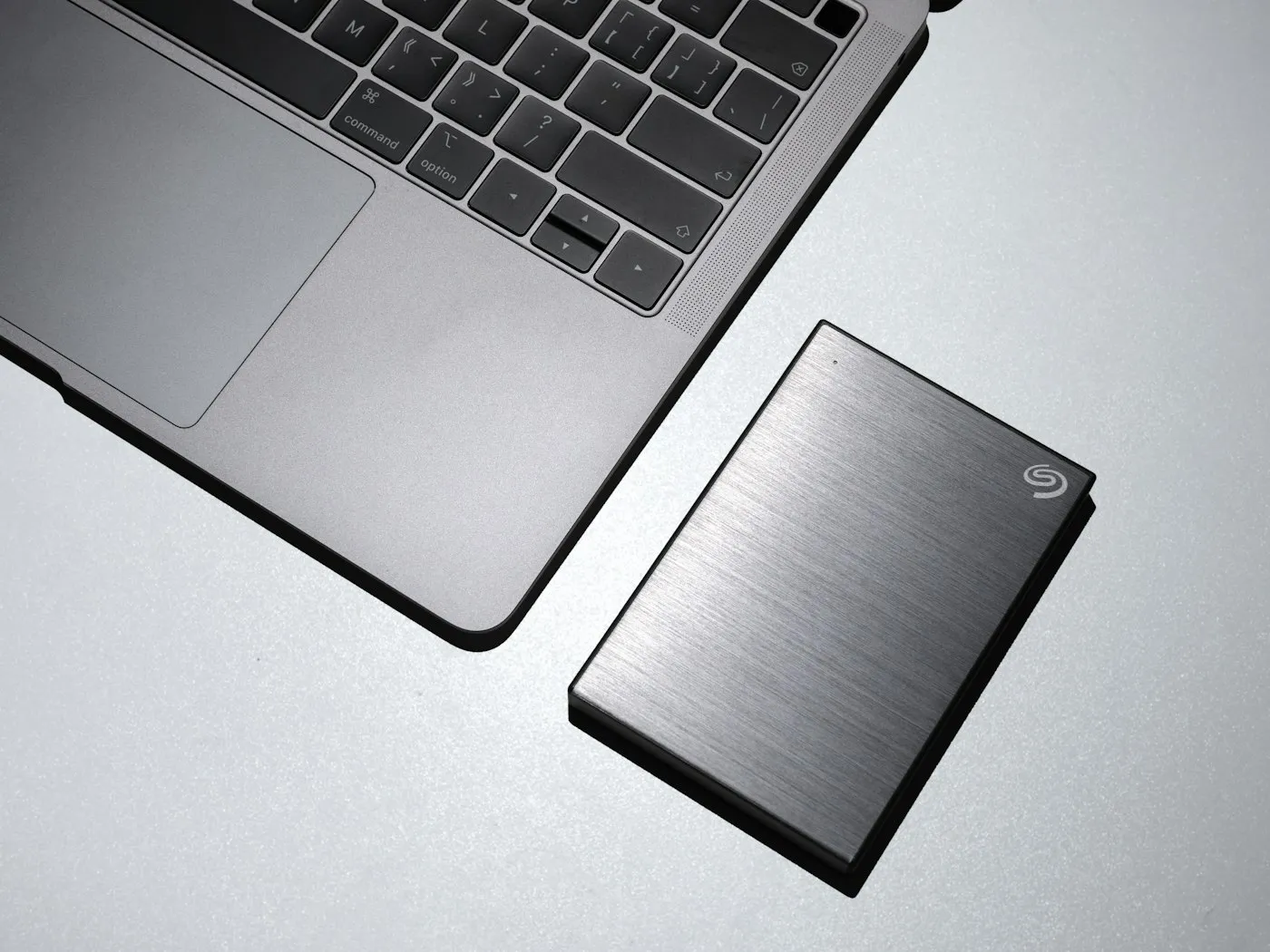
How to back up your phone and computer with the 3-2-1 rule
Learn the 3-2-1 backup rule and how to back up your iPhone, Android phone, Windows PC and Mac, so a lost device or dead drive never takes your files.
Cybersecurity · Explainer
Passkeys explained: how they work, why they're phishing-resistant, where they're stored, and how to set them up on your Apple, Google and Microsoft accounts.

Key takeaways
A passkey is a sign-in credential that replaces your password with something your device already protects: your face, your fingerprint or your screen-lock PIN. Because the secret never leaves your device and only works on the real website it was made for, passkeys are phishing-resistant in a way passwords and text-message codes are not. Here’s how they work, where they still fall short, and how to start using them on your Apple, Google and Microsoft accounts today.
Under the hood, a passkey is a pair of cryptographic keys built on open standards from the FIDO Alliance and the W3C. When you create a passkey for a site, your device makes two linked keys:
When you sign in, the site sends a one-time challenge. Your device asks you to unlock it, the private key signs the challenge, and the site checks that signature with the public key. Nothing reusable is typed, sent or stored on the server.
Two details surprise most people. First, your fingerprint or face scan isn’t sent to the website. It simply unlocks the key on your device, and Google notes that your biometric data stays on the device. Second, a passkey usually counts as more than one factor by itself: you need the device (something you have) plus your face, fingerprint or PIN. That’s why Google says a passkey skips the separate 2-Step Verification step on accounts that use it.
If terms like “authenticator” or “multifactor” are new to you, our tech glossary covers the basics.
Phishing works because people can be tricked into typing a password or a six-digit code into a fake login page. Passkeys take that opportunity away. Each passkey is tied to the exact website or app it was created for, and your browser or operating system enforces that link. As Microsoft explains, a passkey created for one domain can only be used with that domain. If a lookalike site asks for your passkey, your device simply won’t offer it.
That’s why the U.S. Cybersecurity and Infrastructure Security Agency, in its phishing-resistant MFA fact sheet, calls phishing-resistant MFA the “gold standard” and names FIDO/WebAuthn, the technology behind passkeys, as the only widely available form of it. NIST’s current digital identity guidelines, SP 800-63B, define phishing resistance in terms of cryptographically binding a sign-in to the real site, which is exactly what passkeys do.
Notice the wording: phishing-resistant, not phishing-proof. Attackers can still go after your account recovery options, trick you into approving something on your own device, or steal a session after you’ve signed in. Passkeys close the biggest door, not every door.
Passkeys also help when a company gets breached. The site only holds your public key, so a stolen database doesn’t hand attackers anything they can replay to log in, unlike a leaked password you reused on five other sites.
| Passwords | SMS codes (as a second step) | Passkeys | |
|---|---|---|---|
| What you do | Type a secret you remember | Type a code texted to your phone | Unlock your device with face, fingerprint or PIN |
| Can a fake site capture it? | Yes | Yes, if you type it in | Designed not to: it only works on the real site |
| Useful to attackers after a site breach? | Often, especially if reused | Not on their own | No, the site stores only a public key |
| Other common attacks | Guessing, reuse, credential stuffing | SIM swaps, SS7 interception | Attacks on your device lock or account recovery |
| Needs cell signal? | No | Yes | No |
| Supported where? | Almost everywhere | Wherever offered | A growing list of sites and apps |
CISA ranks SMS and voice codes as the weakest form of multifactor authentication and says they should be a last resort. Still, any second step is better than a password alone, so don’t turn off text codes until you have something stronger in place.
Most passkeys people create today are synced passkeys. They live with a passkey provider, such as Apple’s iCloud Keychain, Google Password Manager, Microsoft Password Manager or a third-party password manager, and they’re copied to your other signed-in devices. Apple and Google both say these passkeys are end-to-end encrypted, so the provider can’t read them. The big advantage is resilience: lose your phone and your passkeys aren’t gone, because signing in to the same account on a new device, and confirming your old screen lock or password manager PIN if asked, brings them back.
Device-bound passkeys never leave one piece of hardware. The classic example is a FIDO2 hardware security key that plugs into a USB port or taps over NFC. passkeys.dev describes these as credentials bound to a single authenticator. They’re the stricter option: NIST says syncable authenticators shall not be used at its highest assurance level (AAL3), because a key that syncs has to be exportable. For everyday accounts, synced passkeys are the practical choice. People at higher risk, such as journalists or anyone managing company money, may want security keys for their most important accounts.
You also don’t need your passkey on every device. With cross-device sign-in, a laptop that doesn’t have your passkey, like a library computer, shows a QR code. You scan it with your phone, approve the sign-in there, and the passkey never leaves your phone. The two devices check that they’re physically close, which stops a remote attacker from using the same trick.
Switching providers used to be painful, but the FIDO Alliance has published Credential Exchange specifications designed to move passkeys securely between password managers. Support is still rolling out, so check with your manager before assuming a one-click move.
Menu names change with software updates, so treat these steps as a map rather than a script. If something looks different, search your account’s help pages for “passkey.”
Start with email. Whoever controls your inbox can reset most of your other passwords.
Passkeys are the biggest practical security upgrade most people can make right now, and they’re easier to use than the passwords they replace. They’re phishing-resistant, they leave nothing useful behind in a data breach, and for most people they sync quietly in the background. Just remember that your old password and SMS fallbacks don’t disappear on their own, so tidy those up once your passkeys are working.
For more ways to lock down your accounts and devices, browse our cybersecurity coverage and the full list of guides. Upgrading your home network too? Our Wi-Fi 7 vs Wi-Fi 6E comparison explains whether a new router is worth it.
For more account-safety guides, visit RedAndWhiteMagz.com.
For most people, yes. A passkey only works on the site it was created for, so it can't be typed into a fake login page, and the website stores only a public key that is useless to thieves on its own. Your security still depends on your device lock and on the account recovery options you leave in place.
If your passkeys sync through iCloud Keychain, Google Password Manager or another password manager, signing in to that account on a new device brings them back, though you may need your old screen lock or password manager PIN. You should also remove the lost device's passkeys from your account settings. Passkeys stored only on a hardware security key are not backed up, so register a spare key.
Yes. On the other computer, choose the option to use a passkey from another device or phone, scan the QR code with your phone, and approve the sign-in there. The passkey stays on your phone, and the two devices check that they are near each other before the sign-in goes through.
Usually, for now. Most services keep your password as a backup, and some older apps and devices still require one. Some accounts, including Microsoft accounts, let you remove the password entirely once other sign-in methods are set up.
First published . Spotted an error? Read our editorial policy and tell us.
Learn the 3-2-1 backup rule and how to back up your iPhone, Android phone, Windows PC and Mac, so a lost device or dead drive never takes your files.

How to spot phishing in emails, texts, calls and QR codes, including AI voice-clone scams, plus a step-by-step plan for what to do if you clicked.
Password managers explained: how they create, encrypt and autofill strong passwords, how built-in and standalone apps compare, and how to choose one.
Contact RedAndWhiteMagz.com
Spotted a new gadget, a scam making the rounds or a mistake in one of our guides? Tell us. We read every message and reply as quickly as we can.