
Laptops & PCs · How-to

How to speed up a slow laptop: fixes that actually work

How to speed up a slow laptop on Windows or Mac: nine fixes that work, from startup apps and storage to power mode, malware scans, resets and upgrades.
A half-open silver laptop glowing with red and pink light in a dark room

Key takeaways

  • Restart and install updates first, because many slowdowns disappear after a proper reboot.
  • Task Manager on Windows and Activity Monitor on a Mac show which app is hogging the processor, memory or disk.
  • Trimming startup apps, freeing storage and closing extra browser tabs often fix everyday slowness at no cost.
  • Reset Windows or erase your Mac only after backing up, and only once the simpler fixes have failed.
  • Adding RAM or an SSD is possible only on laptops with replaceable parts, and on MacBooks with Apple silicon both are fixed at purchase.

Many slow laptops can be sped up for free, using tools already built into Windows and macOS. Work through the fixes below in order: restart and update, trim startup apps, free up storage and tame your browser, then check for malware, power settings and background apps. A reset or a hardware upgrade comes last, and only if the simpler fixes don’t help.

First, find out what’s slowing it down

Both operating systems include a tool that shows where the pressure is:

  • Windows: Press Ctrl + Shift + Esc to open Task Manager. On the Processes tab, click the CPU, Memory or Disk column heading to sort apps by how much they use.
  • Mac: Open Activity Monitor (search for it with Spotlight), then click CPU or Memory. Apple’s guide to viewing CPU activity explains the System, User and Idle figures at the bottom of the window.

If one app stays at the top of the list while you work, deal with it first. Then match what you notice to the table below.

Symptom Likely cause Fix to try
Sluggish for several minutes after you sign in Too many apps launching at startup Fix 2
Gets slower the longer it stays on, and a reboot helps Apps piling up in memory, pending updates Fix 1
Browser freezes or tabs keep reloading Too many tabs or heavy extensions Fix 4
Low-storage warnings, updates fail to install Drive nearly full Fix 3
Pop-ups, a new toolbar or a changed homepage Adware or other malware Fix 5
Fast when plugged in, slow on battery Battery-saving power mode Fix 6
Hot, with fans roaring even when idle Background apps, malware or blocked vents Fixes 5, 6 and 7
Slow at everything, even after all of the above Old hard drive, too little RAM or a cluttered system Fixes 8 and 9

Fixes 1 to 3: restart, startup apps and storage

1. Restart and install updates

Closing the lid usually just puts a laptop to sleep. A full restart clears apps piled up in memory and lets waiting updates finish, and updates top Microsoft’s own PC performance tips.

  • Windows: Select Start > Settings > Windows Update > Check for updates. Also look under Advanced options > Optional updates, where driver updates can appear.
  • Mac: Choose Apple menu > System Settings > General > Software Update. Apple says to let the installation finish without putting your Mac to sleep or closing its lid.
  • Browser: Update it too. Google says Chrome works best on the latest version.

Microsoft ended support for Windows 10 on October 14, 2025. If your laptop still runs it, check whether it can move to Windows 11.

2. Stop apps from launching at startup

Chat apps, game launchers and updaters often add themselves to startup, slowing the first few minutes after you sign in.

  • Windows: Select Start > Settings > Apps > Startup and switch off anything you don’t need right away. Task Manager’s Startup apps tab shows the same list with an impact rating. Microsoft rates an app as High impact when it uses more than a second of processor time or more than 3 MB of disk activity at startup.
  • Mac: Choose Apple menu > System Settings > General > Login Items & Extensions (just Login Items on older versions of macOS). Select an app under Open at Login and click the Remove button, as Apple’s guide to login items describes.

Leave your security software switched on.

3. Free up storage space

Microsoft puts it plainly: low disk space can reduce system performance. Apple also lists a lack of free disk space first among the causes when a Mac runs slowly, and a nearly full drive leaves little room for updates.

  • Windows: Go to Start > Settings > System > Storage. Turn on Storage Sense to clear temporary files and the Recycle Bin automatically, or run it now. Remove apps you no longer use under Settings > Apps > Installed apps.
  • Mac: Go to Apple menu > System Settings > General > Storage. The recommendations there include storing files in iCloud and emptying the Trash automatically, and Apple’s storage guide suggests clearing out your Downloads folder, apps you no longer use and old iPhone or iPad backups.

Neither company names an exact amount of free space to keep. Moving old photos and videos to an external drive helps, and our guide to backing up your phone and computer shows how to keep copies safe.

Fixes 4 and 5: your browser and malware

4. Tame browser tabs and extensions

The browser is often the heaviest app on a laptop, because every tab and extension uses memory.

  • Chrome: Google’s guide to speeding up Chrome suggests turning off extensions you don’t use under More > Extensions > Manage Extensions. More > More tools > Task Manager shows which tab or extension uses the most memory. Under More > Settings > Performance, Memory Saver deactivates tabs you aren’t using, and they reload when you click them.
  • Edge: Go to Settings and more > Settings > System and performance > Performance. Microsoft’s sleeping tabs and performance detector free up resources and flag background tabs that use a lot of memory or processor power.
  • Safari and Firefox: The same habits apply. Review your extensions and close tabs you’re not reading.

If you find an extension you don’t remember installing, remove it and go to fix 5.

5. Scan for malware

Malware and adware can run quietly in the background, eating processor time and filling your screen with pop-ups.

  • Windows: Select Start > Settings > Privacy & security > Windows Security > Virus & threat protection, then Quick scan. If you’re still suspicious, open Scan options and choose Microsoft Defender Antivirus (offline scan). Microsoft says it runs after a restart, without loading Windows, so persistent malware has a harder time hiding. Save your work first.
  • Mac: There’s no scan button to press. Apple says the built-in XProtect automatically detects and blocks known malware, and macOS checks for XProtect updates daily by default. Keep macOS updated and install apps only from the App Store or developers you trust.

Be wary of pop-ups claiming your laptop is infected, and of “cleaner” apps you didn’t go looking for. Our cybersecurity guides cover the most common scams.

Fixes 6 and 7: power mode and background apps

6. Check the power mode and the heat

Battery-saving modes trade speed for battery life, and they’re easy to leave on by accident.

  • Windows: Go to Start > Settings > System > Power & battery. Under Power mode, choose Balanced or Best performance for Plugged in, and set On battery separately. Best performance uses more power, so expect shorter battery life.
  • Mac laptops: Go to Apple menu > System Settings > Battery and check Energy Mode, on models that offer it. Apple says Low Power Mode reduces energy use to increase battery life, while Automatic balances energy use and performance.

Heat matters too, because laptops protect themselves from overheating by running their fans harder and, on many models, slowing the processor. Apple advises using a Mac laptop on a stable surface with good ventilation, not on a bed or pillow, and that advice applies to any laptop. Keep the vents clear of dust.

7. Rein in background apps

Some apps keep working after you close their window, such as sync tools, updaters and chat apps.

  • Windows: Go to Start > Settings > Apps > Installed apps, select More options next to an app, then Advanced options, and set its background permission to Never. Only some apps offer this setting. Microsoft also suggests searching Start for “Adjust the appearance and performance of Windows” and choosing Adjust for best performance to turn off visual effects.
  • Mac: In Activity Monitor, select an app you don’t need and quit it. Under System Settings > General > Login Items & Extensions, turn off Allow in the Background for apps that don’t need to sync or check for updates while closed.

Fix 8: reset as a last resort

If the laptop is still slow, a reset gives you a clean system. Back up first, because it removes your apps and can remove your files.

  • Windows: Go to Settings > System > Recovery and select Reset PC. Keep my files reinstalls Windows but keeps your personal files, while Remove everything wipes files, apps and settings. Cloud download fetches a fresh copy of Windows, and Local reinstall uses files already on the laptop. If your drive is encrypted, have your BitLocker recovery key ready. Microsoft warns that the screen can sometimes stay black for 15 minutes or more, and restarting manually could make the reset fail.
  • Mac: On a Mac with Apple silicon or an Apple T2 Security Chip running macOS Monterey or later, go to System Settings > General > Transfer or Reset > Erase All Content and Settings. Apple says this erases all your data, settings and apps while keeping macOS installed.

Afterwards, reinstall only the apps you actually use.

Fix 9: upgrade RAM or storage, if your laptop allows it

Spend money only when your monitoring tools show memory or the disk maxed out day after day.

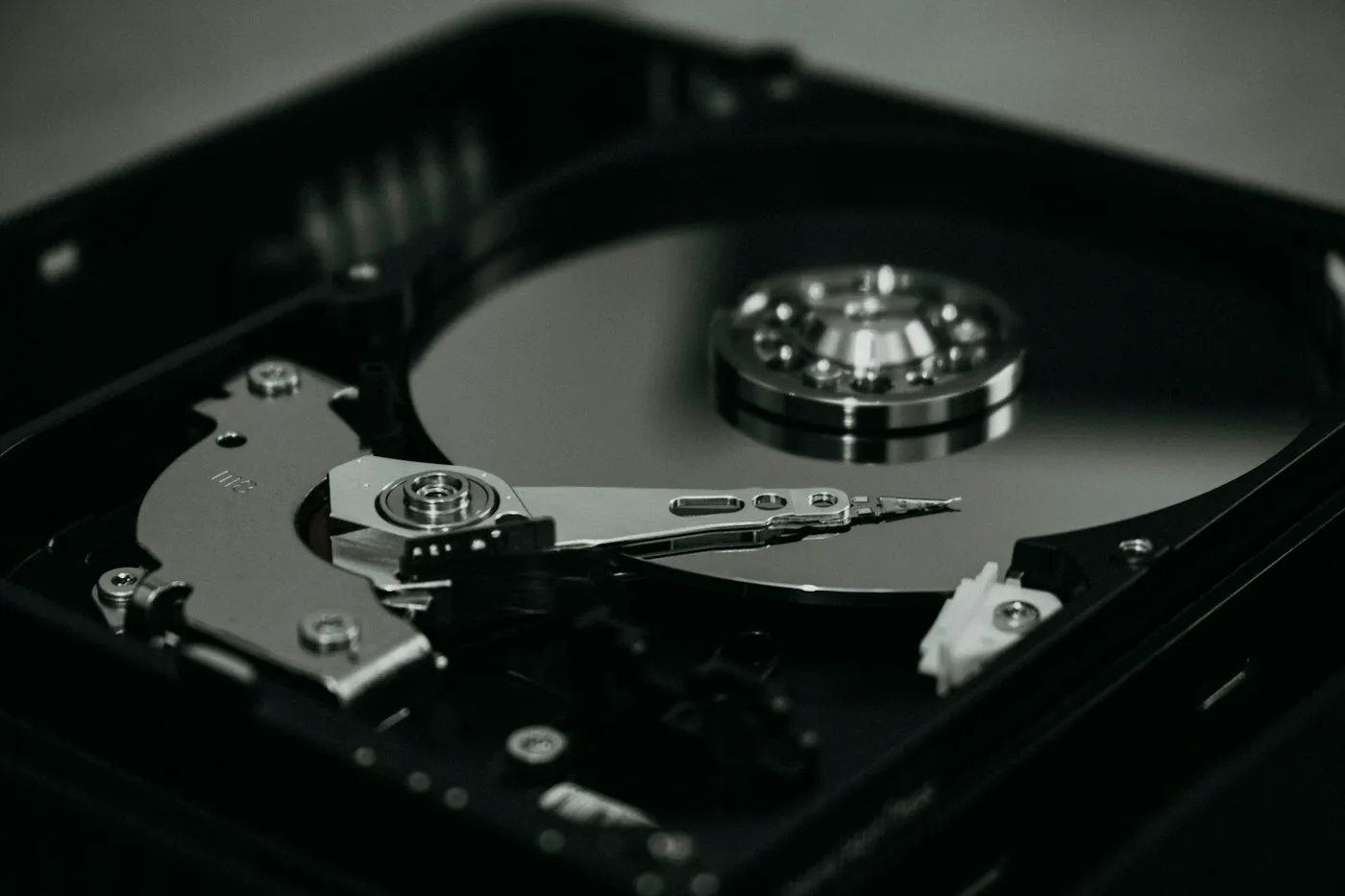
  • Swap a hard drive for an SSD. If an older laptop still has a spinning hard drive, replacing it with an SSD is often the biggest speed boost you can buy. Our SSD vs HDD guide explains why.
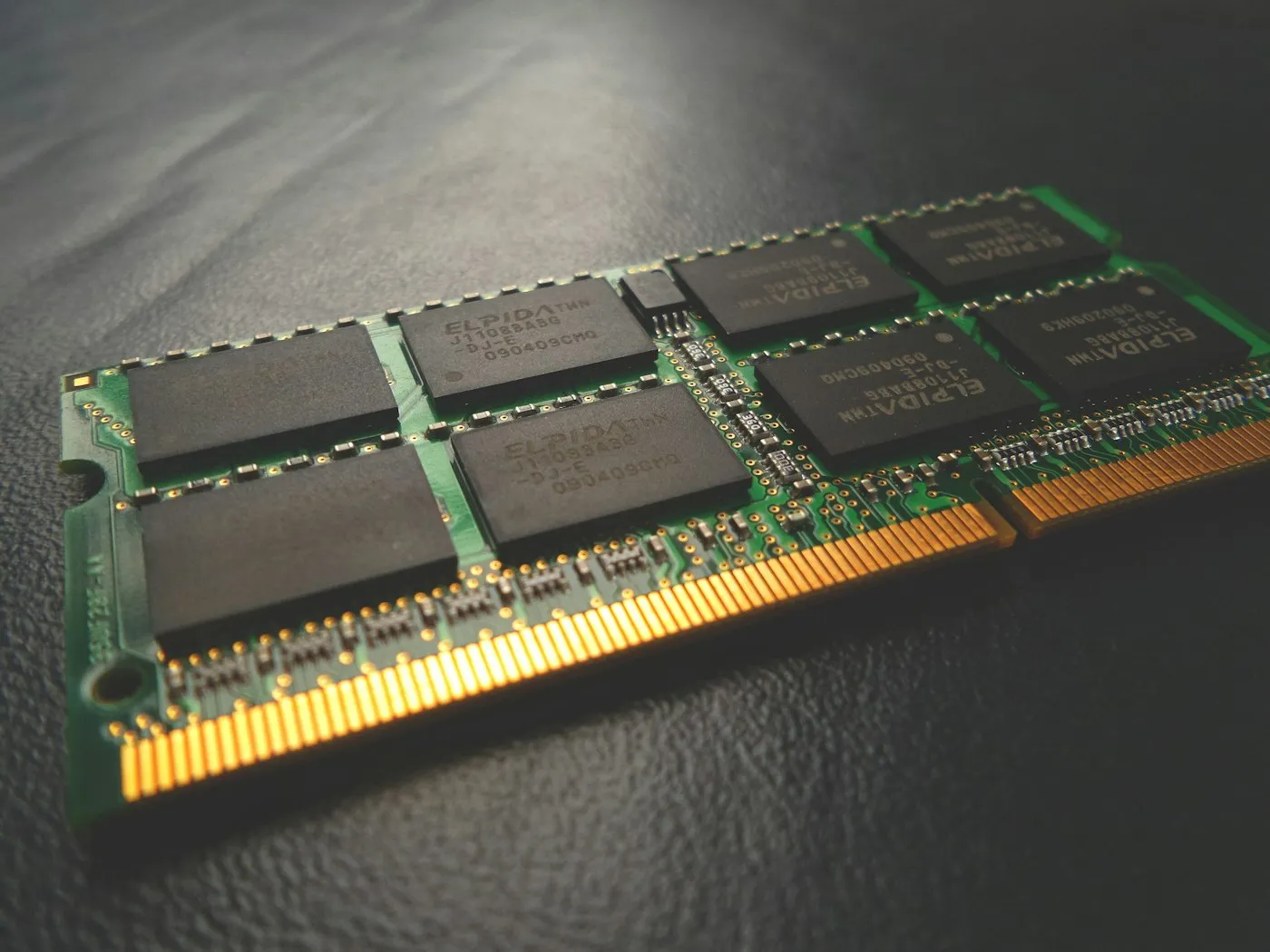
  • Add RAM if memory is always full. In Task Manager, open Performance > Memory. On a Mac, check the Memory Pressure graph in Activity Monitor. Our guide to how much RAM you need covers the right amount for your workload.
  • Check before you buy. Many thin laptops have memory soldered to the motherboard, and on MacBooks with Apple silicon, memory and storage are fixed at purchase. Look up your exact model in the manufacturer’s manual or support site to see which parts can be replaced.

If nothing can be upgraded, our guide on how to choose a laptop helps you pick a replacement.

The bottom line

Start with the free fixes: restart, update, cut startup apps, clear storage and close extra tabs. Then scan for malware, check the power mode and rein in background apps. Reset only after backing up, and upgrade only parts that can actually be replaced. For more plain-English help with your next machine, browse our laptop coverage and the rest of RedAndWhiteMagz.com.

Frequently asked questions

Why is my laptop suddenly so slow?

A sudden slowdown usually has a recent cause: an update installing in the background, a new app that runs at startup, a nearly full drive or a browser extension you added. Malware and overheating are other common culprits. Open Task Manager or Activity Monitor to see which app is using the most processor, memory or disk, and start there.

Why is my brand-new laptop slow?

New laptops often spend their first days downloading updates, syncing your files and indexing them for search, which can make them feel sluggish for a while. Many Windows laptops also ship with trial apps that launch at startup. Let the updates finish, restart, then remove preinstalled apps you don't want.

Do PC cleaner or RAM booster apps help?

Usually not. Windows and macOS already include tools for clearing junk files, managing startup apps and protecting against malware, and they don't cost anything. Some cleaner apps nag you to pay for a fix or bundle unwanted software, so avoid any you didn't seek out yourself from a trusted source.

Should I upgrade my old laptop or buy a new one?

If the laptop has a spinning hard drive or too little memory, and those parts can be replaced, an SSD or RAM upgrade usually costs less than a new machine, though memory and storage prices rose sharply in 2026, so compare before you buy. If the parts are soldered, the processor is maxed out on simple tasks, or the laptop can no longer run a supported version of its operating system, a replacement is the better use of your money.

Sources

First published . Spotted an error? Read our editorial policy and tell us.

Contact RedAndWhiteMagz.com

Have a tech question or a story tip?

Spotted a new gadget, a scam making the rounds or a mistake in one of our guides? Tell us. We read every message and reply as quickly as we can.
Close-up of a black mechanical keyboard with glowing red backlit keys in a dark room